 Uncloud
How Uncloud works
One Mac at home holds everyone’s files. We call it the Uncloud computer. It can be an old laptop or a desktop that stays on. Files live on its own drive, or on an external drive plugged into it.
- Everyone gets their own space. Each person has a username and password and sees only their own files.
- Use it from any browser. Sign in from a computer, phone or tablet, at home or away.
- Keep a folder on your Mac in sync. The Uncloud app keeps a folder on your laptop the same as your files in Uncloud, both ways.
- Bring your files in. Copy them from your computer, Dropbox, iCloud, Google or Evernote.
- Share by link. Send anyone a link to a file or folder. They don’t need an account.
There’s one Uncloud app, for Mac. The same app runs the Uncloud computer and keeps other Macs in sync. Everyone else can use Uncloud in a web browser.
Set up Uncloud
This part is for the person who looks after Uncloud. It takes about five minutes.
What you need
- A Mac that can stay at home, plugged in and switched on.
- Enough space for everyone’s files, on the Mac itself or on an external drive. An external drive must be formatted for Mac (APFS or Mac OS Extended).
- The Mac’s administrator password. macOS asks for it once, during setup.
1. Get the app
- Download Uncloud for your Mac. To check which kind you have, open the Apple menu → About This Mac. It says Chip: Apple M… or Processor: Intel.
- Open the download and drag Uncloud onto the Applications folder.
- Open Uncloud from Applications. The first time, macOS asks if you’re sure. Click Open.
Uncloud lives in the menu bar at the top of the screen, as a U. It doesn’t appear in the Dock.
2. Set up the Uncloud computer
- Uncloud asks How will you use this Mac? Choose Store everyone’s files here.
- Choose where files are kept. Stored on this Mac is the default. To use an external drive, click Use an external drive or another folder.
- Leave Keep this Mac awake ticked. A Mac that’s asleep can’t hand anyone their files.
- Click Set Up and enter the Mac’s administrator password.
Your browser then opens.
If macOS never shows the password box, Uncloud offers Finish in Terminal. A Terminal window opens and asks for the same password there. The Uncloud window carries on once it’s done.
3. Create your account
In the browser, enter your name, a username and a password of at least 10 characters, then click Continue. This first account is the admin: it can add people and change settings.
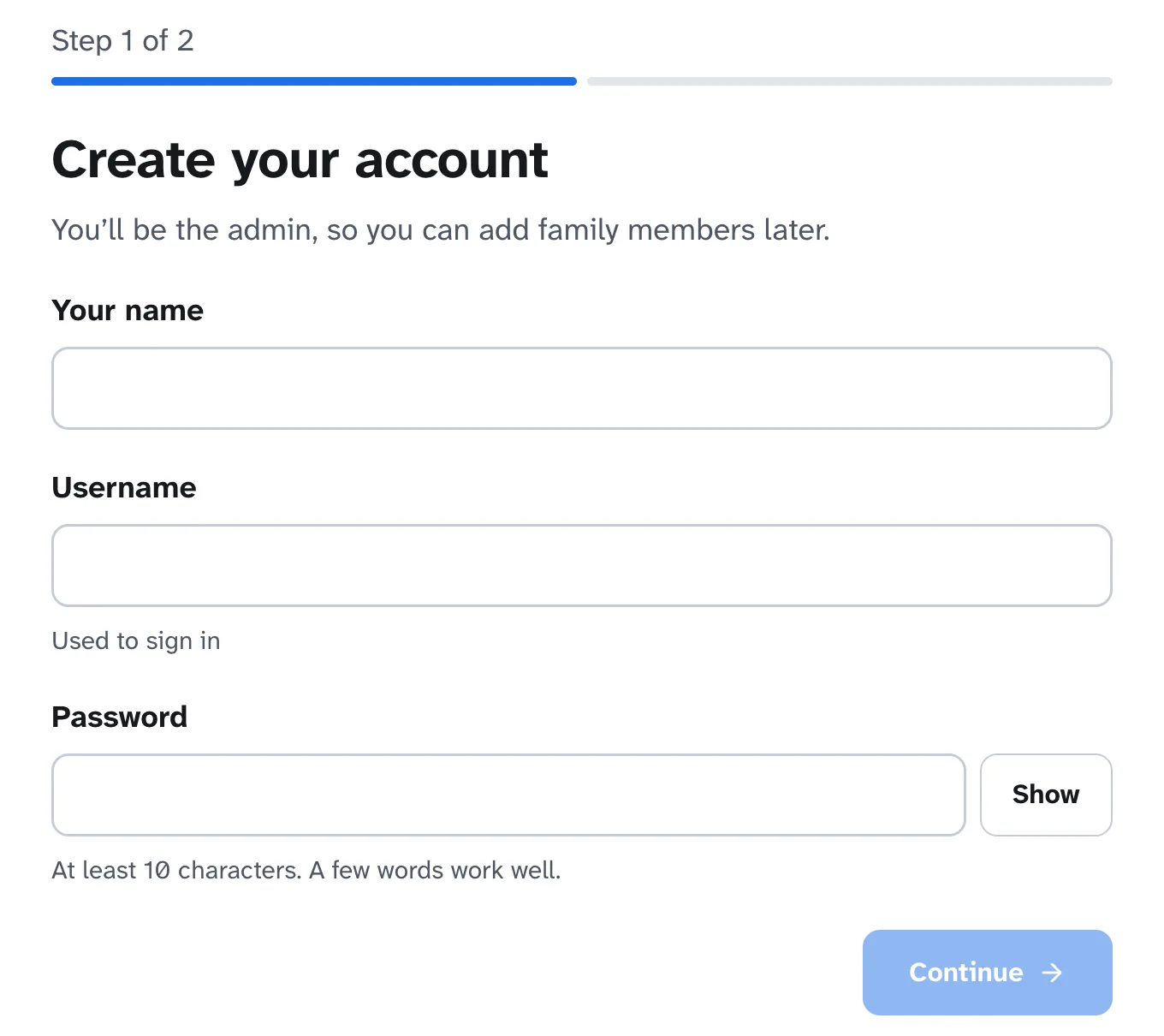
You’ll land in My files. Uncloud is ready to use on this Mac.
4. Keep the Uncloud computer on
People can only reach their files while the Uncloud computer is on and awake. Uncloud stops a Mac sleeping while it’s the Uncloud computer, and a desktop Mac starts up again by itself after a power cut. Settings lists anything that could still stop it.
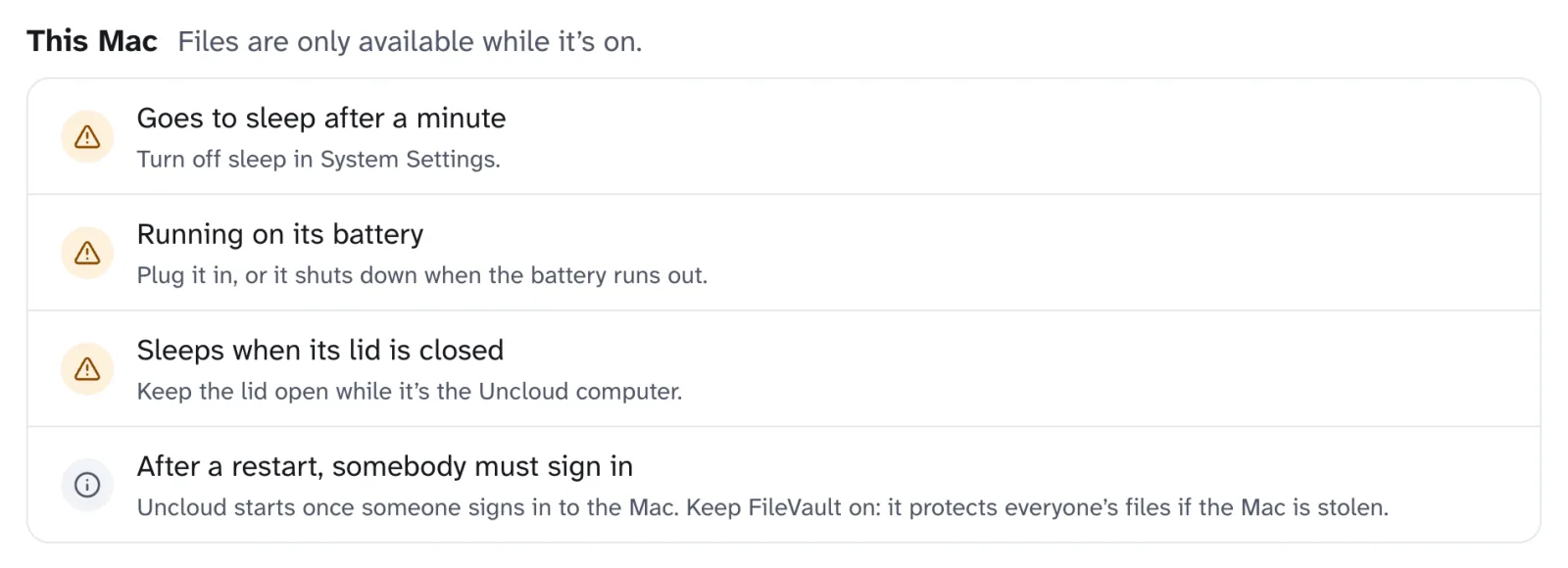
- Keep a laptop plugged in with the lid open. A closed laptop sleeps.
- If FileVault is on (it usually is), Uncloud starts after a restart only once somebody signs in to the Mac. Leave FileVault on: it protects everyone’s files if the Mac is stolen.
5. Turn on Access from anywhere
Until you do this, Uncloud only works on the Uncloud computer itself. Turn it on so that people can use Uncloud from their own devices, other computers can sync, and shared links work.
- Open Settings. Under Access, turn on Access from anywhere.
- Click Approve in Tailscale. Tailscale is a free service Uncloud uses for its secure connection. Sign in or make an account. You only do this once.
- If Uncloud then shows Open in Tailscale, click it and say yes. This lets your Uncloud be reached from outside your home.
- After a minute, Uncloud shows your address, something like
https://uncloud.tail1234.ts.net.
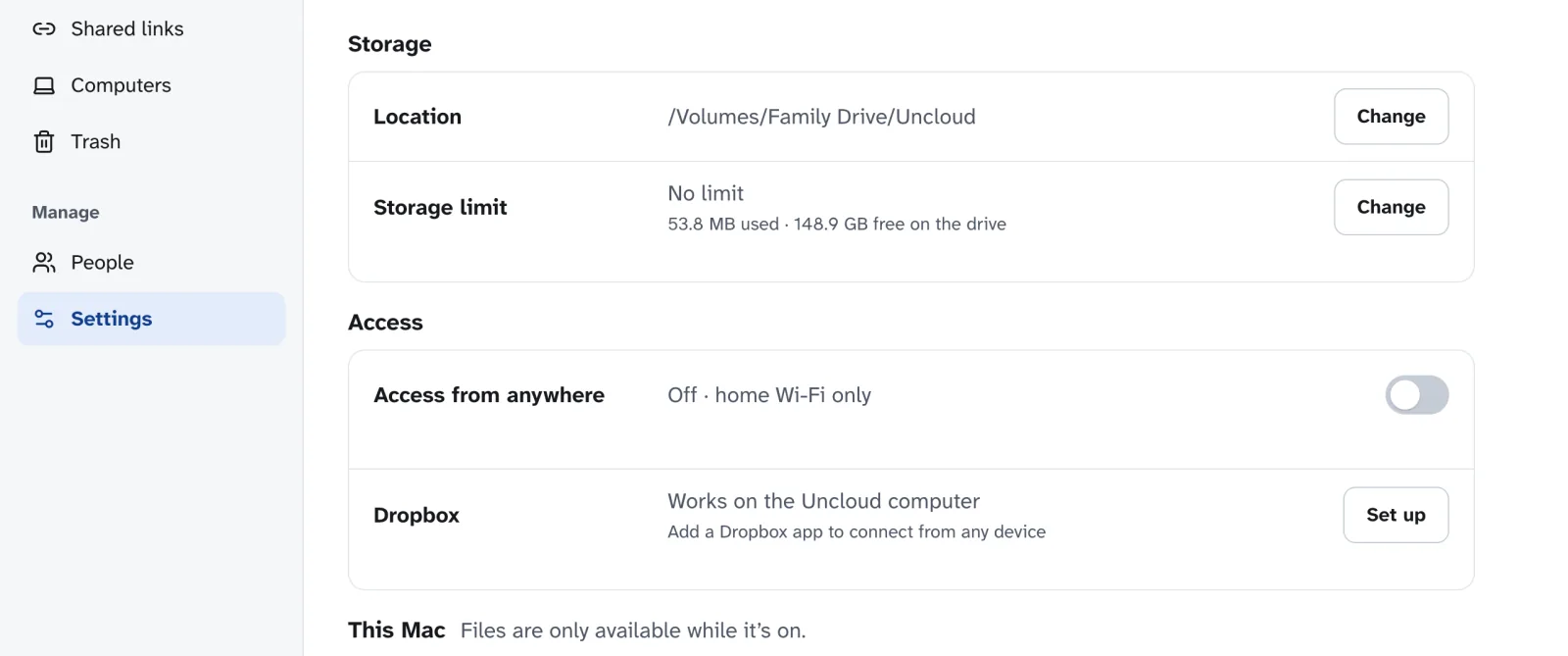
Send that address to everyone in your household. It works at home and away, on any device. It doesn’t change if your internet provider changes your IP address, and there are no router settings to change.
To close it again, turn the same switch off. Uncloud keeps working on the Uncloud computer.
This connection is fine for everyday files. Very large files, like hours of video, are slow to download from outside your home.
6. What next
- Add everyone else.
- Set up a backup before anyone relies on Uncloud.
Add people
Admins manage everyone’s accounts under People.
Add someone
- Open People and click Add person.
- Enter their name. The username fills itself in, and Uncloud suggests a password that’s easy to read out.
- Choose Member (sees only their own files) or Admin (can also add people and change settings). Choose Admin only for another adult who helps look after Uncloud.
- Click the blue Add button, which shows their name.
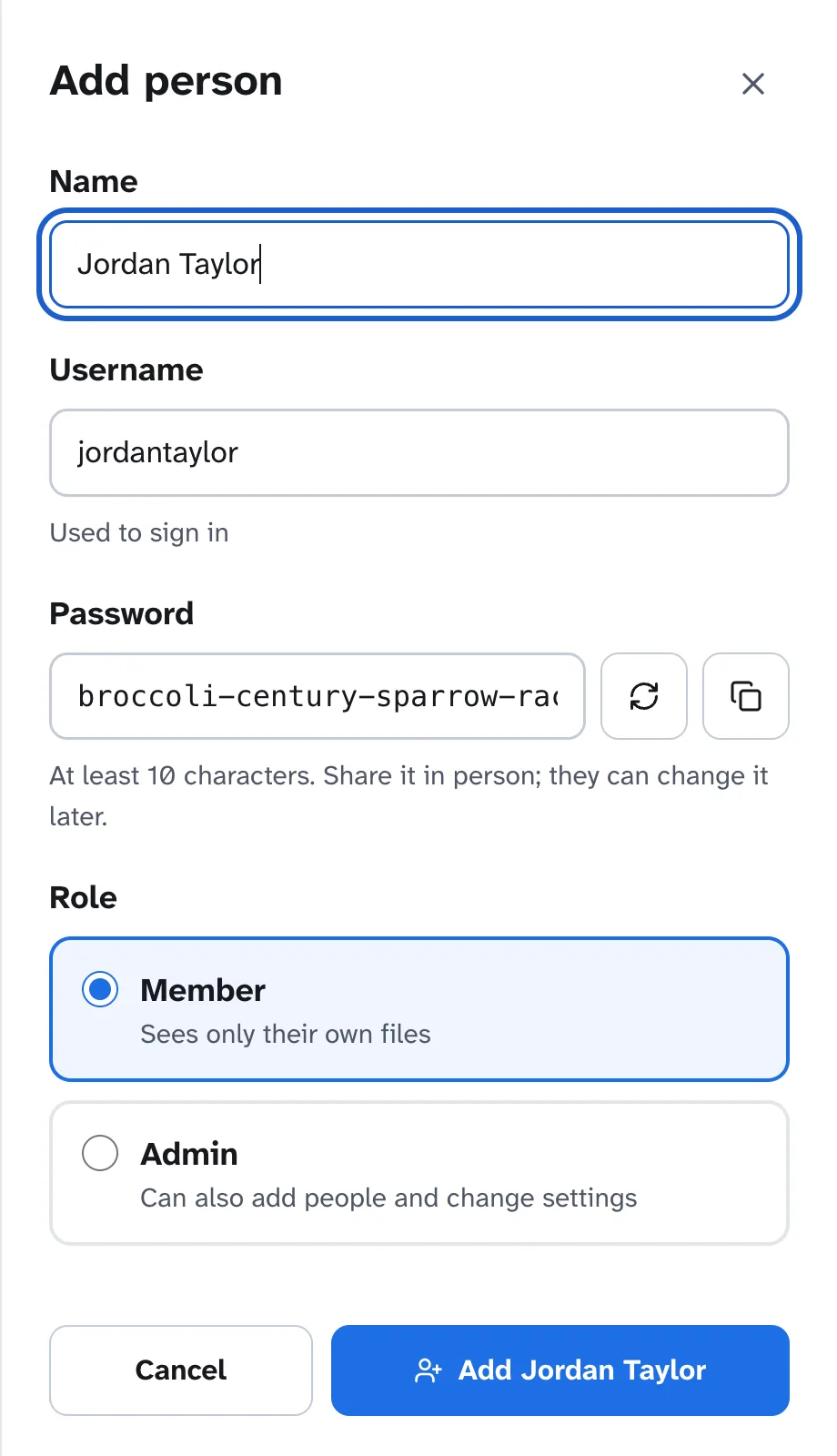
Uncloud can’t send email. Give the person the Uncloud address, their username and their password yourself, and ask them to change the password when they first sign in.
Manage people
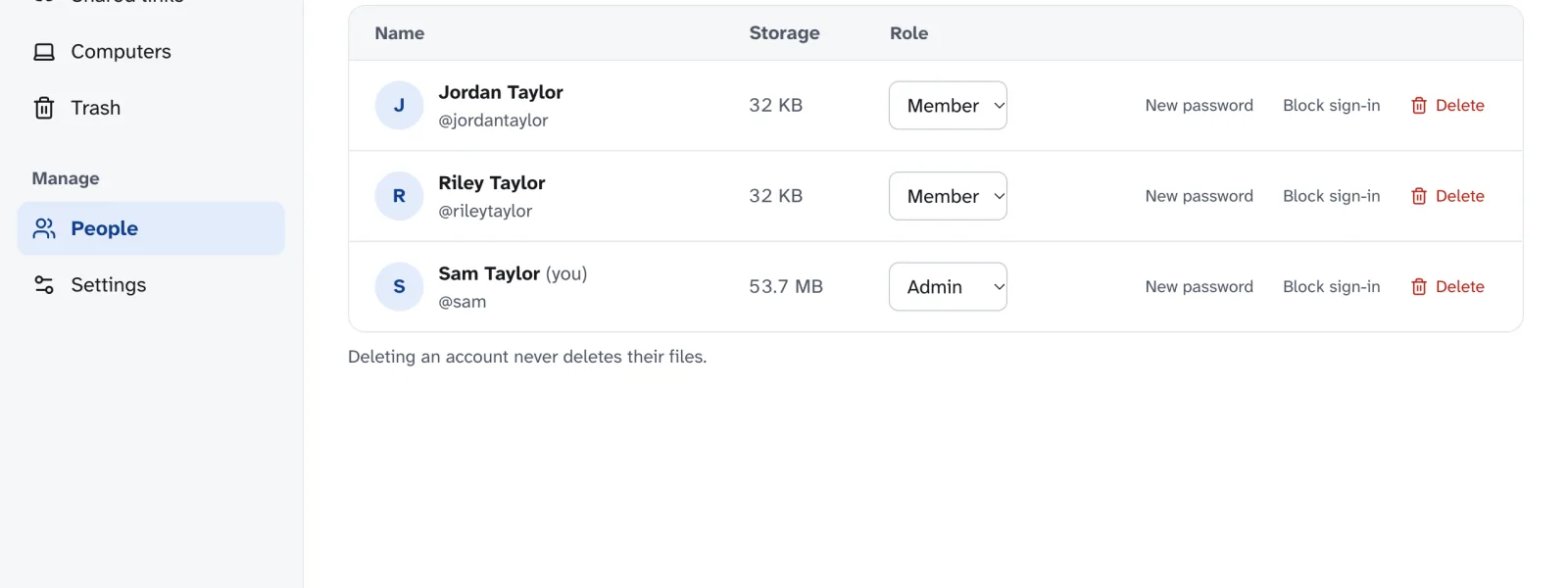
- Role changes someone between Member and Admin. There’s always at least one admin.
- New password gives someone a new password if they forget theirs. It signs them out everywhere.
- Block sign-in stops someone signing in, without deleting anything. Links they’ve shared stop working until you let them back in.
- Delete removes the account. Their files are never deleted.
Admins can’t see anyone else’s files. See Who can see what.
Signing in for the first time
- Open the address you were given in any browser.
- Sign in with your username and password.
- Click your initial in the top-right corner, then My account, and change your password. Changing it signs you out on your other devices.
Forgot your password? Ask your admin to give you a new one.
Your files
My files is your own space. Only you can see it.
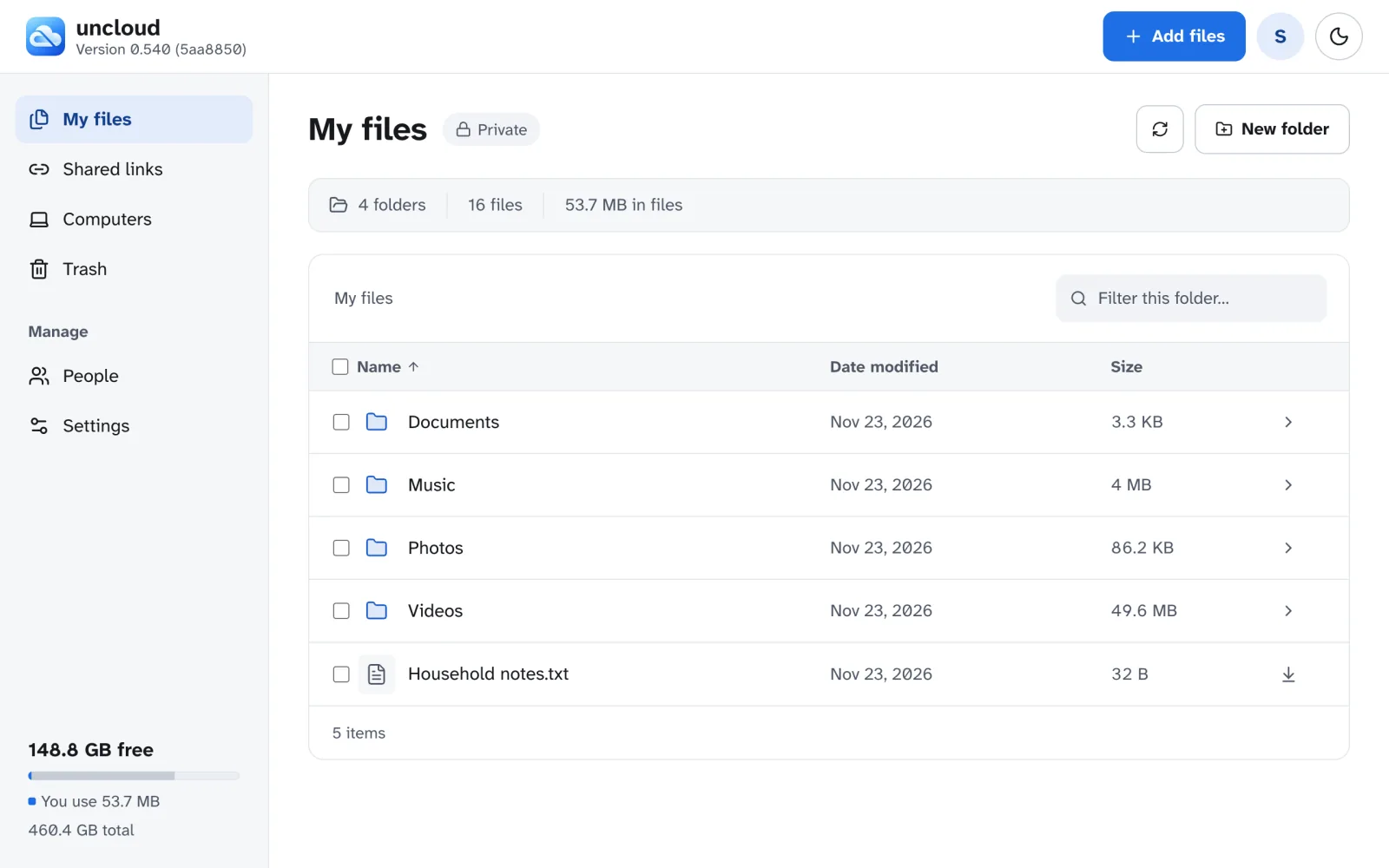
- Click a folder to open it. Use the path above the list, or your browser’s back button, to go back.
- Type in Filter this folder to find something in the folder you’re in. Click Name, Date modified or Size to sort.
- Each folder shows how big it is.
- Click a file to see its details. Click the arrow at the end of its row to download it.
- The bottom-left corner shows how much space is left, and how much you use. It turns amber, then red, when space runs low.
Organize files
Click New folder to make a folder in the one you have open. Tick the box beside files and folders to act on them:
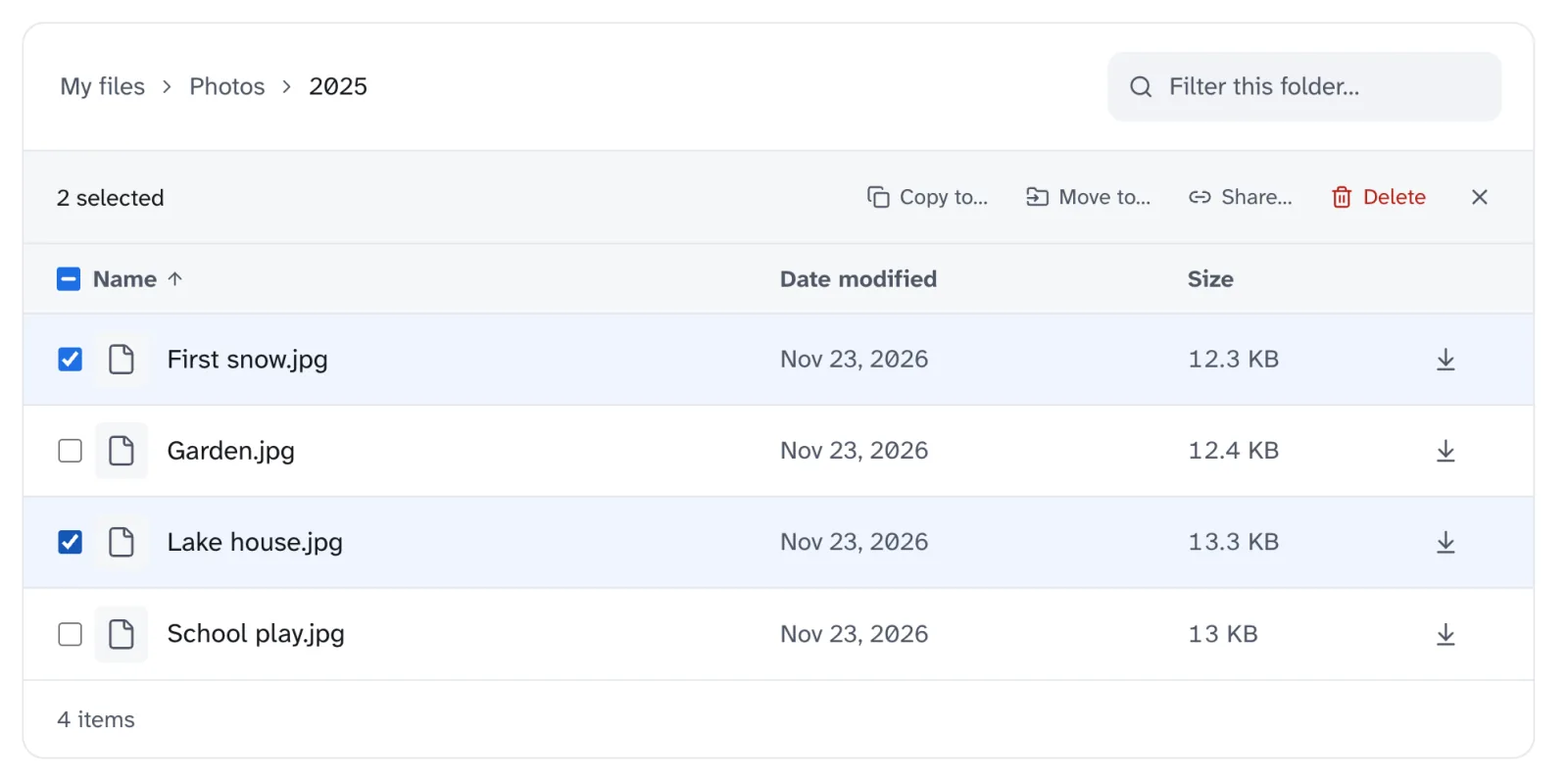
- Copy to… and Move to… put them in another folder.
- Rename… appears when one item is ticked.
- Share… makes a link. See Share by link.
- Delete moves them to the Trash.
You can also drag files and folders onto a folder in the list, or onto a folder in the path above it, to move them there. Hold Option (Ctrl on Windows) as you drop to copy instead.
Uncloud never overwrites anything. If a folder already has something with the same name, the new one gets a new name, like notes 2.txt.
A folder that syncs with one of your computers can’t be moved, renamed or deleted until you stop syncing it.
Trash
Deleted files and folders wait in the Trash for 30 days.
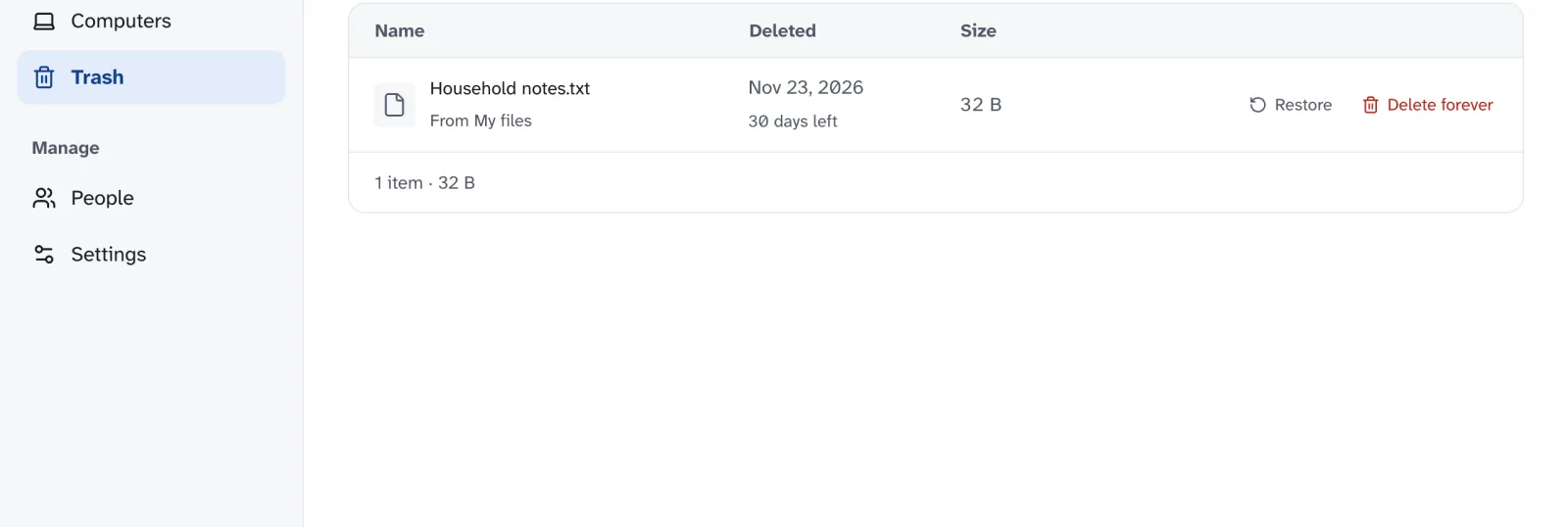
- Restore puts something back where it was, even if its folder has since gone.
- Delete forever and Empty Trash free up the space straight away.
- Deleting a file that syncs with your computer deletes it there too. Restoring it puts it back there as well.
Bring your files in
Click Add files at the top of the page and choose where your files are.
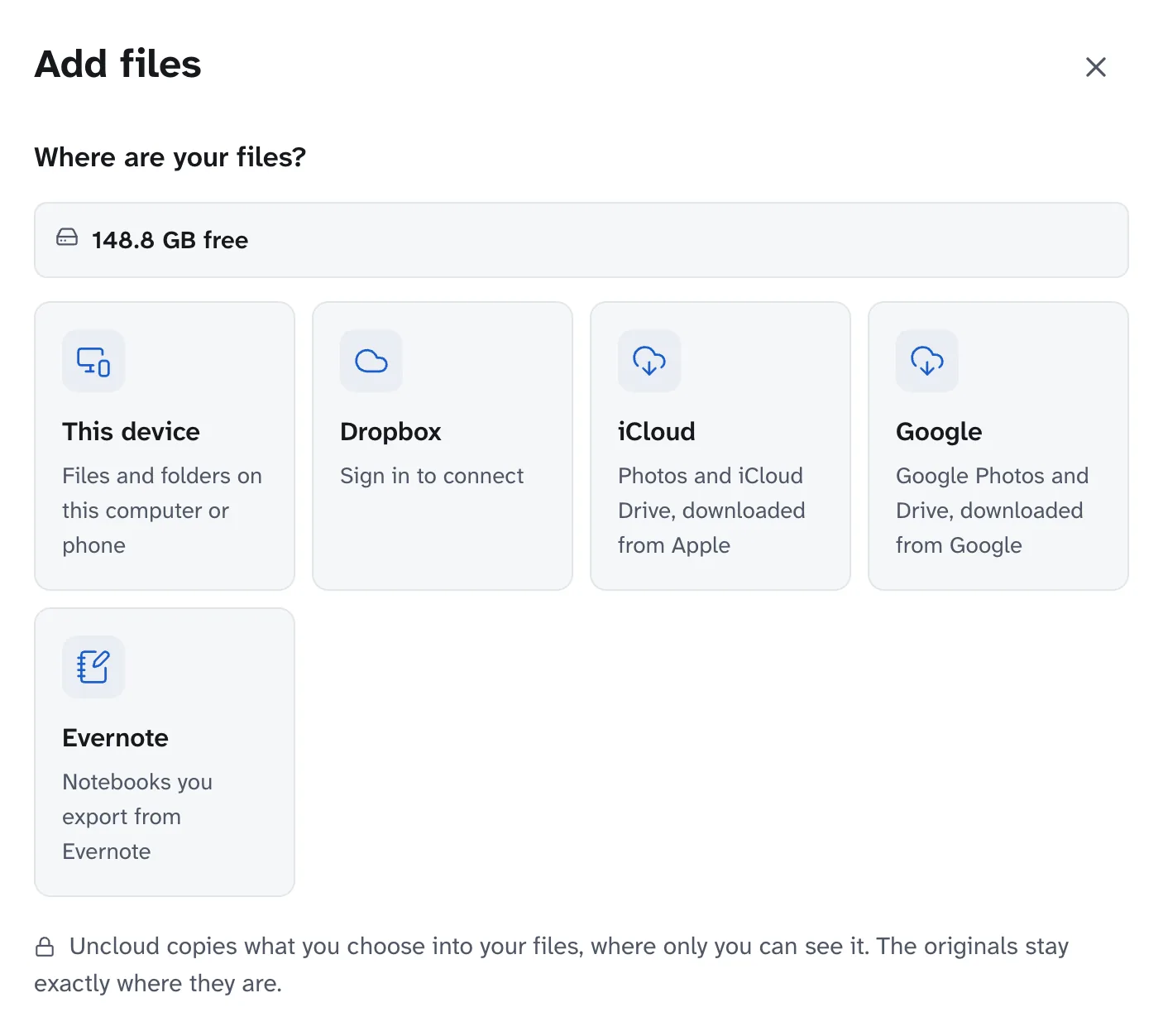
Uncloud copies what you choose. The originals stay where they are. What you add is yours alone, and adding the same thing again only brings what’s new. Uncloud checks there’s room before it starts.
From the computer or phone you’re using
Choose This device, then Choose files… or Choose a folder…. Or drop files straight onto My files, or onto a folder in the list. They go into the folder you have open.
- Keep the page open until My files says they’re in. The page is what sends them.
- If your laptop sleeps or loses its connection, the upload pauses and carries on by itself afterwards, as long as the page is still open.
- If you close the page partway, what arrived is kept for a day. Add the same files again and only the rest is sent. Or click Add what arrived to keep what’s there, or Throw away.
- If some of the files are already in Uncloud, it tells you how many are new, changed or the same before sending anything. Add sends only the new and changed ones. Replaced copies go to the Trash. Keep both adds everything again beside what’s there.
From folders and drives on the Uncloud computer
Admins using Uncloud from another device see Uncloud computer. It shows folders and drives on the Uncloud computer, such as Documents, Pictures, an old backup drive, or the folder your Google Drive, OneDrive or iCloud app keeps. On the Uncloud computer itself, use This device instead.
- Open a folder to look inside, or click Add next to it to bring the whole thing.
- Tick several items and click Add selected, or click Add all. The total size is shown first.
- Click Choose another folder… to find anything else.
- To let everyone in the household copy from a folder (family photos, say), open it and click Share this folder with everyone here. It appears for them under Shared with you. Make private again undoes it.
The Uncloud app must be open on the Uncloud computer for this to work.
From Dropbox
- Choose Dropbox and click Connect Dropbox.
- Sign in on Dropbox’s own page and allow access.
- If you’re not on the Uncloud computer, Dropbox shows a code at the end. Copy it into the box Uncloud is showing. If you mistype it, paste it again.
- Browse your Dropbox. Click Add next to a file or folder, tick several and click Add selected, or click Add all.
Uncloud can only read your Dropbox. It never changes or deletes anything there. Files arrive in a folder called Dropbox in My files. You can close the page while they copy: My files shows how far it has got, and Stop keeps what has already arrived.
To disconnect, click Sign Uncloud out of Dropbox at the bottom of the Dropbox list. Files you’ve added stay.
From iCloud
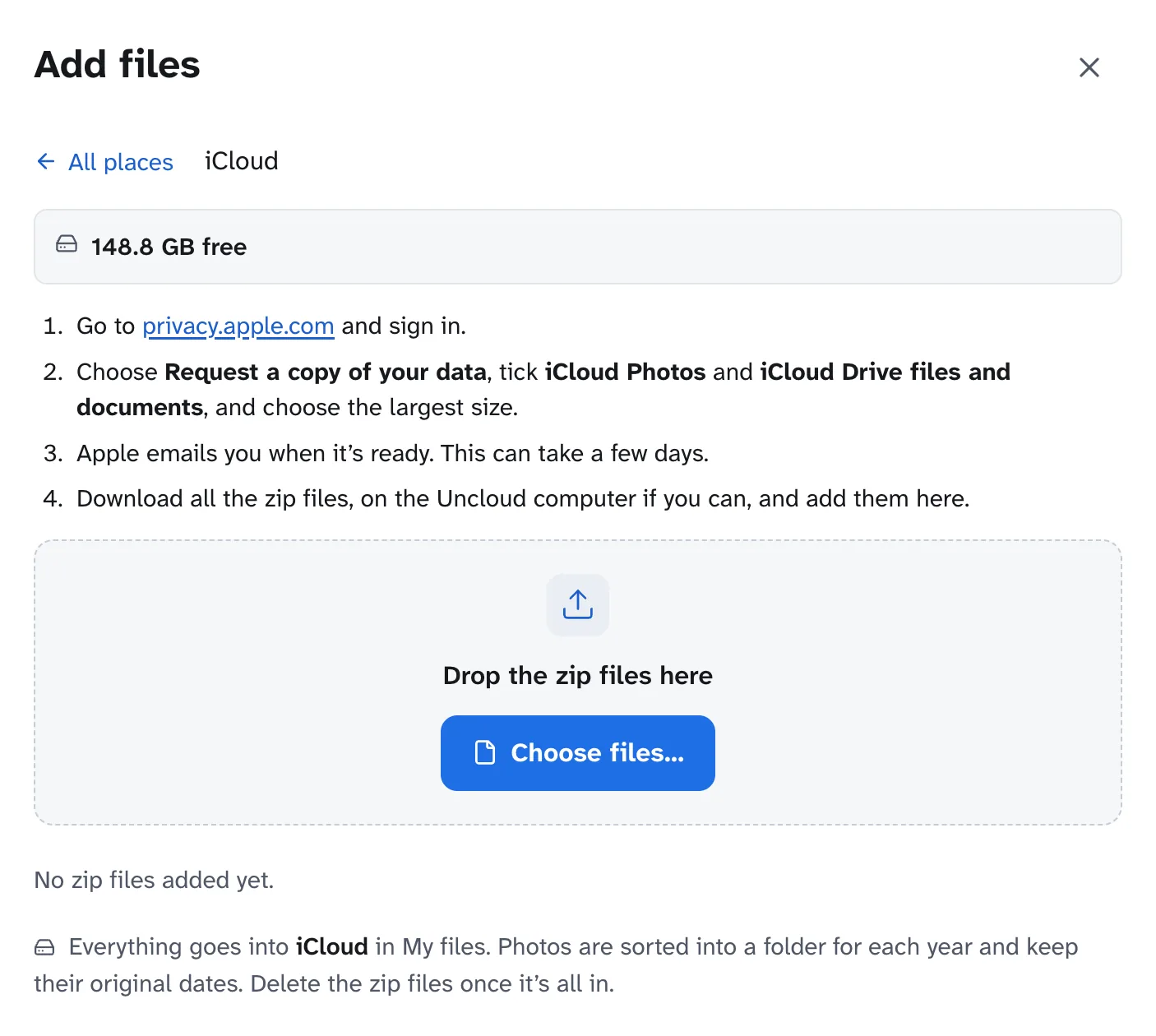
Uncloud can’t sign in to iCloud, but Apple will let you download everything as zip files.
- Go to privacy.apple.com and sign in.
- Choose Request a copy of your data. Tick iCloud Photos and iCloud Drive files and documents, and choose the largest size.
- Apple emails you when it’s ready. This can take a few days.
- Download all the zip files. In Uncloud, click Add files → iCloud and add them all at once.
From Google Photos and Google Drive
- Go to takeout.google.com and sign in.
- Choose Deselect all, tick Drive and Google Photos, then Next step.
- Keep the file type as .zip, choose 50 GB, then Create export. Google emails you when it’s ready.
- Download all the zip files. In Uncloud, click Add files → Google and add them all at once.
What you get from iCloud and Google
Everything goes into a folder called iCloud or Google in My files:
- Photos has a folder for each year. Each photo appears once, with the date it was taken.
- Albums has a page for each album. Open it in a browser on a computer that syncs with Uncloud.
- iCloud Drive or Drive has your files and folders. Google Docs, Sheets and Slides arrive as Word, Excel and PowerPoint files.
- Recently Deleted or Trash has photos that were in the bin.
Good to know:
- Download the zip files on the Uncloud computer if you can. They’re big, and this saves sending them over the internet again.
- You need about twice the space while you do this. Delete the zip files once everything is in.
- Add all the parts at once. A photo’s date or album is sometimes in a different part.
- Add files shows how many photos and files the zips hold, and whether a part is missing. Check the numbers before you delete anything from iCloud or Google.
- If Advanced Data Protection is on, Apple leaves your photos out. Instead, open the Photos app on a Mac, select your photos, choose File → Export → Export Unmodified Originals, and add that folder.
- Shared albums from iCloud arrive as zip files in Shared Albums. Memories aren’t included.
From Evernote
- Open the Evernote app on a Mac or PC. The website and phone app can’t export.
- Right-click a notebook, choose Export notebook…, then ENEX. Do this for each notebook.
- In Uncloud, click Add files → Evernote and choose the files you exported.
Each notebook becomes a folder in Evernote, in My files, with a page for each note that opens in any browser. Attachments go in a folder next to the note. The exported files are kept too, in case you want them for another notes app.
- Compare the number of notes Uncloud shows with Evernote before you cancel Evernote.
- Export once you’ve stopped using Evernote. Adding a notebook again brings only new notes, not changes to old ones.
- Encrypted text stays encrypted. You need your Evernote passphrase to read it.
- Uncloud is not a notes app. You can read your notes, but not edit them.
From OneDrive and other services
Uncloud can’t sign in to OneDrive or Google Drive directly yet. Install the service’s own app on the Uncloud computer so its files are on that Mac, then add its folder with This device (on the Uncloud computer) or Uncloud computer (from anywhere else).
Sync your computers
The Uncloud app keeps a folder on your Mac the same as your files in Uncloud. Add, change or delete a file on one and the same happens on the other, at home or away.
The Uncloud computer needs Access from anywhere turned on, even for a laptop at home. Computers tells you if it’s off.
Connect a Mac
- Get the app on the Mac you want to connect, and open it.
- Choose Connect to your Uncloud. The app looks for your Uncloud by itself.
- Click Sign in to connect. Your browser opens. Sign in to Uncloud and click Add this computer.
That’s it. Your files appear in a folder called Uncloud in your home folder, and stay in step both ways.
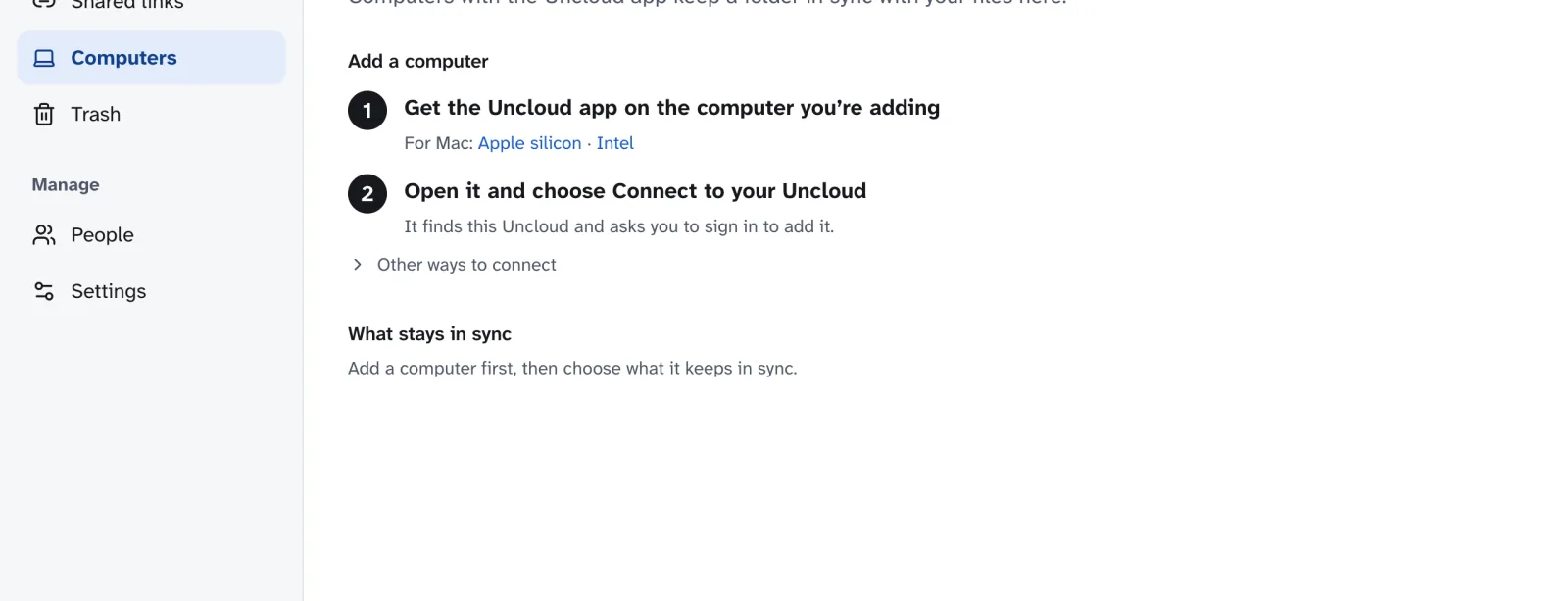
Other ways to connect:
- With your phone. If your phone is signed in to Uncloud, click Scan with a phone that’s signed in instead, scan the code, and tap Add this computer.
- Away from home, or if the app can’t find your Uncloud, enter the address you use in your browser.
- With a pairing code. In Uncloud, open Computers → Other ways to connect → Get a pairing code. In the app, choose Other ways to connect → Type a pairing code.
Choose what stays in sync
Computers lists each of your computers, whether it’s connected, and how far it has got. Under What stays in sync, click Choose what to sync or Sync another folder to pick a folder, or all of your files, then Start syncing.
Stop syncing stops a folder syncing. The files stay where they are on both sides. Remove stops syncing with a computer. Nothing is deleted on either side.
If the Uncloud computer runs out of room, new files wait on your laptop, and Computers says how many are waiting.
The menu bar
Click the U in your Mac’s menu bar to see whether you’re up to date, syncing, paused, or can’t reach Uncloud. From there you can also:
- Open Uncloud Folder or Open Uncloud in Browser.
- Pause Syncing and Resume Syncing.
- Disconnect This Computer… to stop syncing this Mac.
- Open at Login. Leave it ticked so syncing starts when you sign in.
Good to know
- Deleting a file on your laptop deletes it in Uncloud too. Syncing isn’t a backup.
- Files deleted or replaced on a synced computer are kept on the Uncloud computer for 30 days. There’s no button to get them back yet. Email hello@uncloud.life and we’ll help.
- If a file changes on both sides at once, you get both versions. One has
sync-conflictin its name. - Your synced files are on your laptop, so you can open them even when the Uncloud computer is off. Changes catch up when it’s back.
Windows and Linux computers
There’s no Uncloud app for Windows or Linux yet; Windows is coming soon. Until then, you can sync them with a free app called Syncthing:
- Install Syncthing on the computer and open it.
- In Uncloud, open Computers → Other ways to connect. Under Windows or Linux, with Syncthing, click Copy this Uncloud’s ID.
- In Syncthing, click Add Remote Device and paste it.
- In Syncthing, click Actions → Show ID and copy the computer’s ID.
- Back in Uncloud, paste it and click Add computer.
- Click Choose what to sync, pick a folder and click Start syncing. Accept the folder when Syncthing offers it.
Share by link
Send anyone a link to files or folders, like holiday photos for a grandparent. They don’t need an account. Shared links only work once Access from anywhere is on.
Make a link
- In My files, tick what you want to share (or open a file’s details) and click Share….
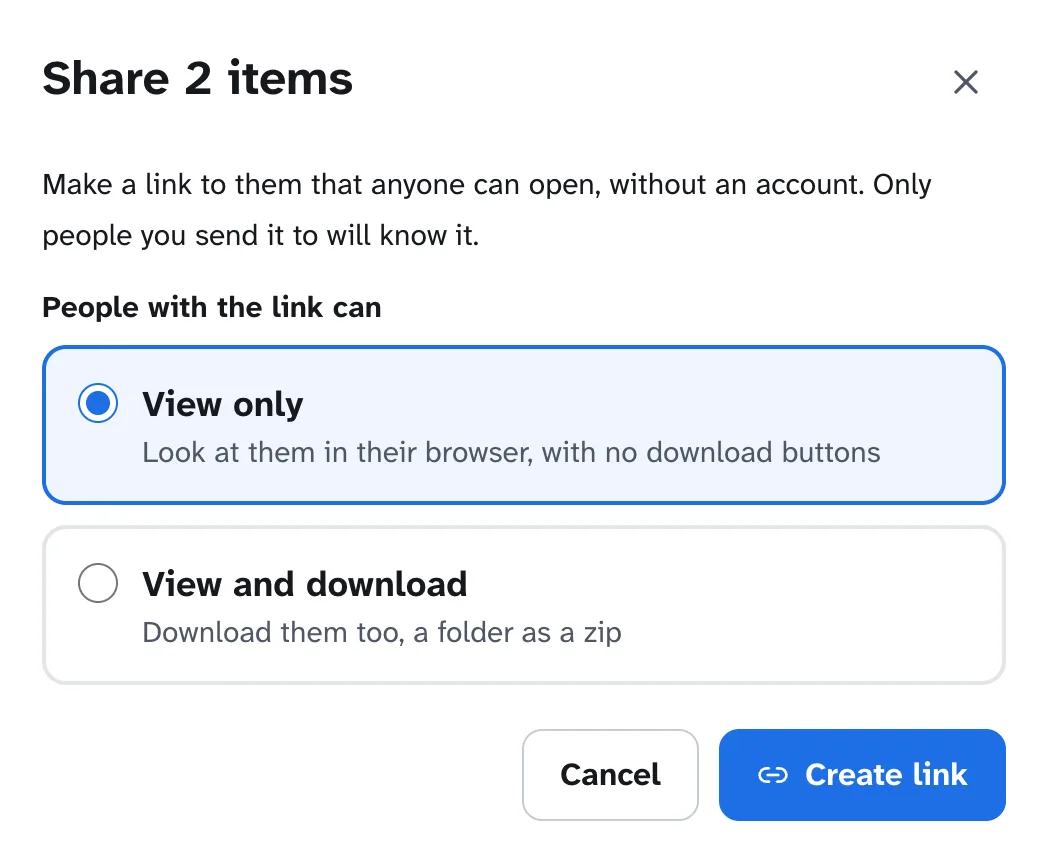
- Choose what people with the link can do:
- View only: look at them in their browser. Photos, videos, music, PDFs and text files open on the page. There are no download buttons.
- View and download: download them too. A folder downloads as a zip.
- Click Create link, then Copy link, and send it however you like.
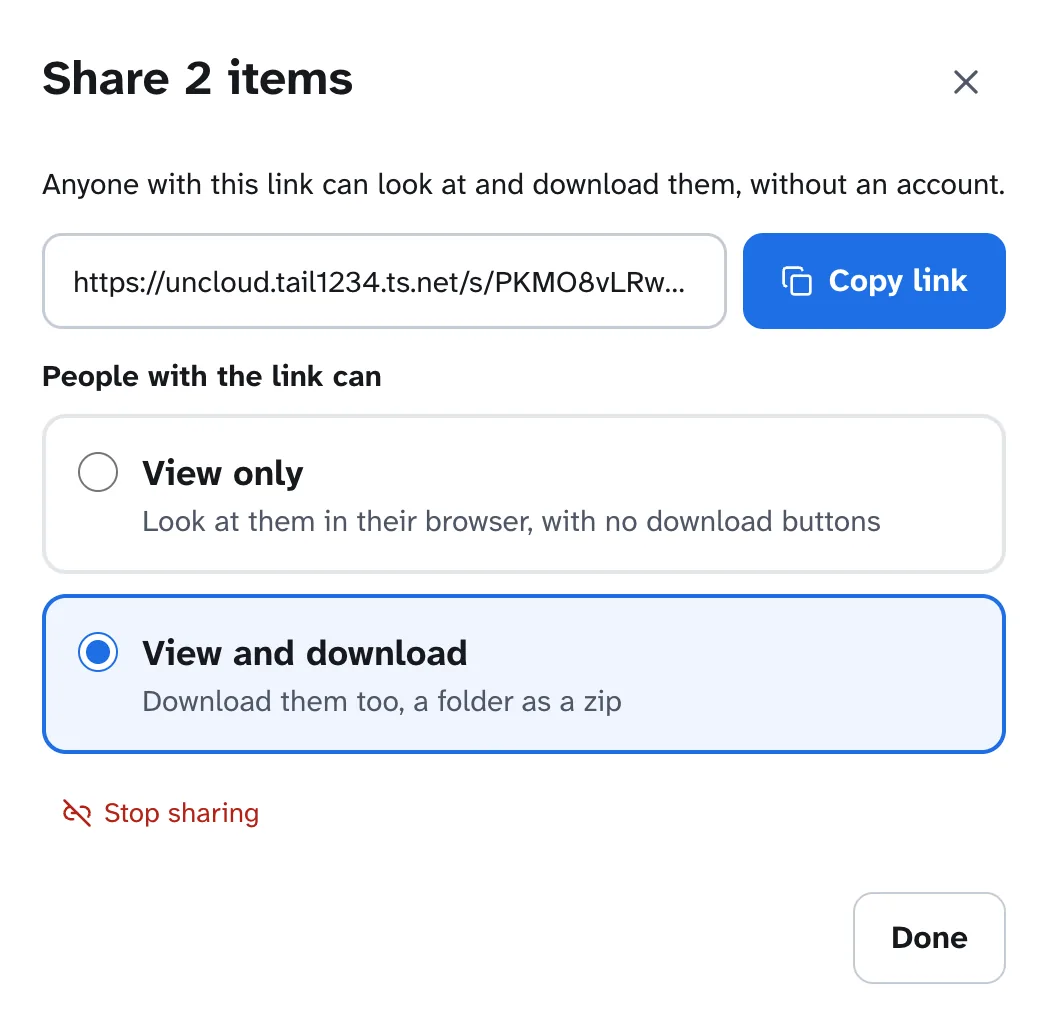
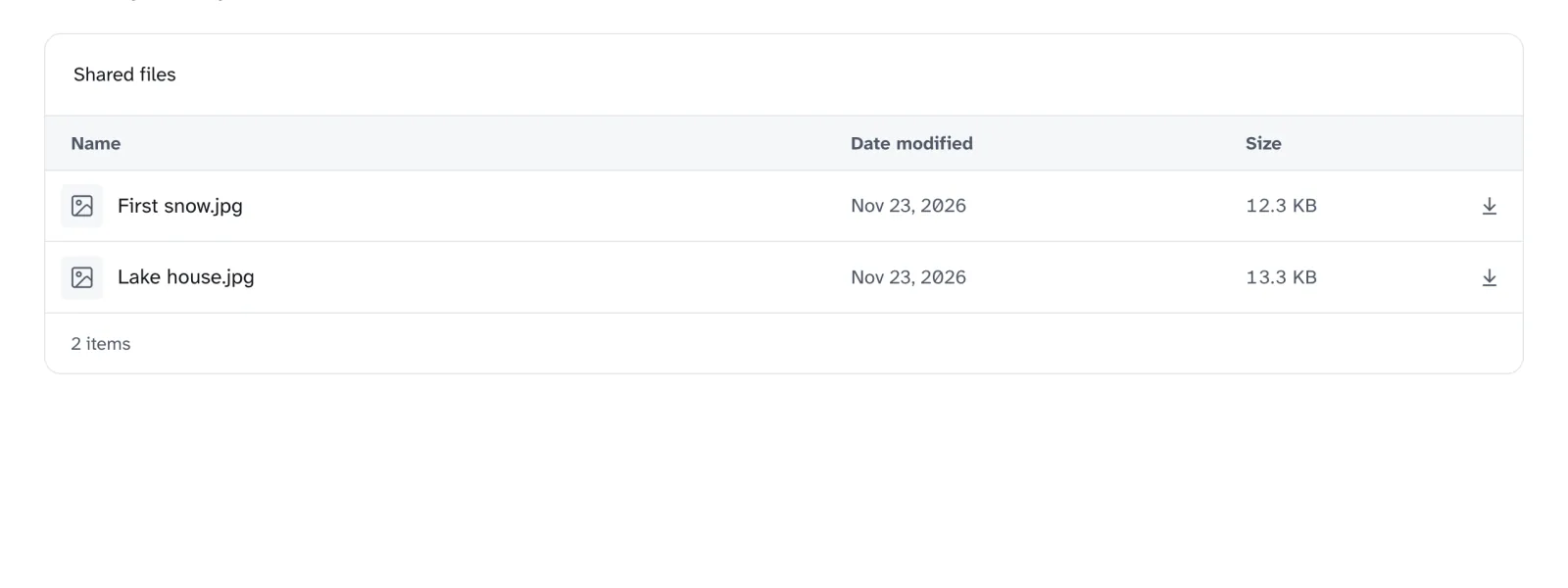
A link to a folder shows everything in it, including what you add later. Things ticked together share one link.
This is what the other person sees:
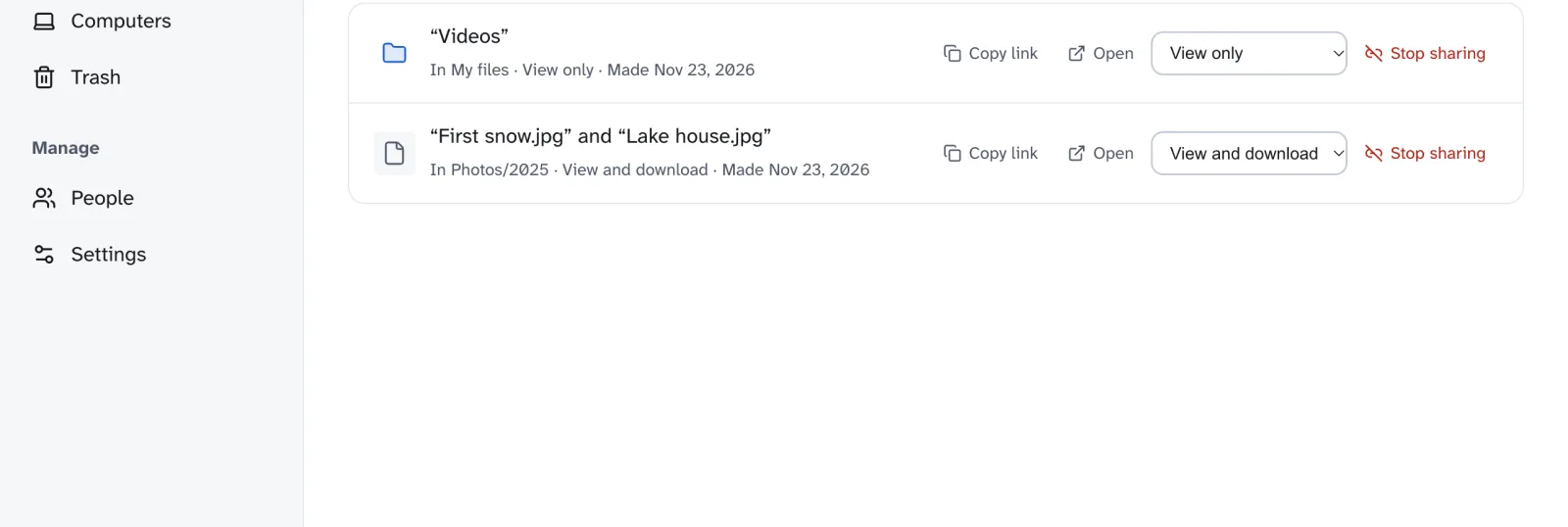
See and stop your links
Shared links, in the sidebar, lists every link you’ve made. From there you can copy a link, change what it allows, or click Stop sharing. A link stops working straight away. Something you’ve shared has a small link icon beside its name in My files.
Good to know
- Anyone who has a link can open it. Send it only to the people it’s for, and stop sharing when they’re done.
- View only has no download buttons, but anything someone can see, they can still copy, with a screenshot say. Only share what you’re happy for them to keep.
- A link follows what it shares when you move or rename it in Uncloud.
- Deleting something stops sharing it. Restoring it from the Trash doesn’t share it again.
- Uncloud doesn’t see renames on a synced computer. If you rename or delete a shared item there, the link stays on the old name.
Settings and the menu bar
Settings is for admins.
Storage
- Location is where everyone’s files are kept.
- Storage limit stops Uncloud filling the drive. Click Change and set an amount (say, 500 GB) or a share of the drive (say, 50%). When it’s used up, nobody can add more until you raise it or files are deleted. Nothing is ever deleted to make room.
- The sidebar shows the space left on every page.
Access
- Access from anywhere turns your address on and off. See step 5 of setup.
- Dropbox works without any setup. If you’d rather use a Dropbox app you registered yourself, click Set up and follow the steps. Anyone can also set their own under My account.
This Mac
Lists anything that could stop the Uncloud computer staying on, like sleep, battery or a closed lid, and what to do about it.
The menu bar on the Uncloud computer
Click the U in the Uncloud computer’s menu bar. It says whether Uncloud is running and warns if the Mac could sleep. It also has:
- Keep This Mac Awake: on by default. Leave it on.
- Access From Anywhere…: opens the same setting as in Settings.
- Use Another Folder…: keeps everyone’s files somewhere else, such as a new drive. Uncloud asks for an administrator password and then tells you what to choose under Settings.
- Update Uncloud…: appears after you update the app. Uncloud asks for an administrator password to finish.
- Turn Off Uncloud on This Mac…: stops Uncloud. Everyone’s files and accounts are kept, and pick up where they left off if you turn it back on.
- Open at Login: leave it ticked.
Update Uncloud
Download the app again from the links in Get the app and drag it onto Applications, replacing the old one. On the Uncloud computer, then choose Update Uncloud… from the menu bar.
Keep a backup
Uncloud is not a backup. It keeps one copy of everything, on one drive. If that drive fails or the Mac is stolen, the files are gone. Syncing a laptop doesn’t protect you either, because a deletion syncs just like a new file.
Before you rely on Uncloud:
- Turn on Time Machine on the Uncloud computer, with a second drive. Make sure it includes the drive or folder where Uncloud keeps files. It backs up the accounts too.
- Or use any backup that keeps older versions of files, so you can get back something deleted weeks ago.
Offsite backup (trial)
Uncloud is testing its own offsite backup: an encrypted copy of everyone’s files, kept somewhere else and updated every night. During the trial, joining needs an invite code.
- In Settings → Offsite backup, enter your invite code and click Join.
- Uncloud shows a recovery kit: a backup password and a recovery token. Click Download the kit and keep it somewhere safe, away from the Uncloud computer. It’s shown only once, and it’s the only way to get everything back if the Mac is lost.
Once backups are running, everyone sees Backups in the sidebar. Pick a date and click Restore next to a file or folder. Newer files are not overwritten. You only see your own files in the backups.
To rebuild a lost Uncloud computer, set up a new one, then in Settings → Offsite backup click Use a recovery kit and enter the kit.
Who can see what
- Each person’s files are visible only to them. That includes admins: they manage accounts but can’t browse anyone’s files. They can give someone a new password, but that signs the person out, so they’d notice.
- On the Uncloud computer, nobody signed in to the Mac can look through anyone’s files in Finder, including you. Uncloud runs in an account of its own. The only way in is deliberately, as a Mac administrator, so keep the Mac’s administrator password to the people who look after it.
- Files you share by link can be opened by anyone who has the link, until you stop sharing it.
- With Access from anywhere on, passwords keep strangers out, so everyone should use a good one. Uncloud slows down anyone who keeps guessing.
- Files travel encrypted between your devices and the Uncloud computer, and aren’t stored with any cloud company.
If something goes wrong
I can’t reach Uncloud
Check the Uncloud computer is on and awake. Click the U in its menu bar: it says whether Uncloud is running. Uncloud starts again by itself if it stops, and when the Mac restarts. With FileVault on, somebody has to sign in to the Mac after a restart first.
My laptop isn’t syncing
Click the U in the laptop’s menu bar. It says whether it’s up to date, syncing, paused, or can’t reach Uncloud. If it can’t, check the Uncloud computer is on, that Access from anywhere is on, and that the laptop can open your Uncloud address in a browser.
macOS didn’t ask for my password
Click Finish in Terminal. A Terminal window opens and asks for the password there.
macOS says Uncloud can’t be opened
You may have an old download. Download Uncloud again from Get the app and drag it onto Applications, replacing the old one.
Adding from the Uncloud computer says the Uncloud app isn’t open
Open Uncloud on the Uncloud computer, and leave Open at Login ticked. Uncloud’s own account can’t read your folders, which keeps them private, so the app reads them for it.
Dropbox showed me a code
That’s expected when you’re not on the Uncloud computer. Copy the code into the box Uncloud is showing.
The external drive was unplugged
Plug it back in and refresh the page. If it comes back with a new name, choose its folder again under Settings → Location.
I forgot my password
Ask your admin. They can give you a new one under People.
I deleted something by mistake
Look in the Trash first. If you deleted it on a synced computer, email hello@uncloud.life within 30 days. If you have offsite backup, you can also restore it from Backups.
Still stuck?
Email hello@uncloud.life. Tell us what you were doing and what you saw.
What Uncloud doesn’t do yet
- The Uncloud computer must be a Mac. Windows can’t be the Uncloud computer yet, but Windows computers can use Uncloud in a browser.
- The app is for Mac only; Windows is coming soon. On a phone, use your browser. Windows and Linux computers can sync with Syncthing.
- No sharing between people inside Uncloud. Use a shared link instead.
- No storage limit per person, only one for the whole Uncloud.
- No signing in to Google Drive, iCloud, OneDrive or Evernote. Use their exports or apps as described in Bring your files in.
- No built-in backup, except the offsite backup trial.